TABLE OF CONTENTS
- Introduction
- Set WiFi on scanners
- To check internet connection from the scanner
- How To check scanner IP
- How to Ping from the scanner
Introduction
Setting up a handheld scanner on a Wi-Fi network generally involves connecting the scanner to your network and ensuring SDA applications can communicate with Emydex systems wirelessly.
Set WiFi on scanners
Scanners should connect with wifi in order for the SDA app to communicate with the Emydex database and allow the scanner to function properly.
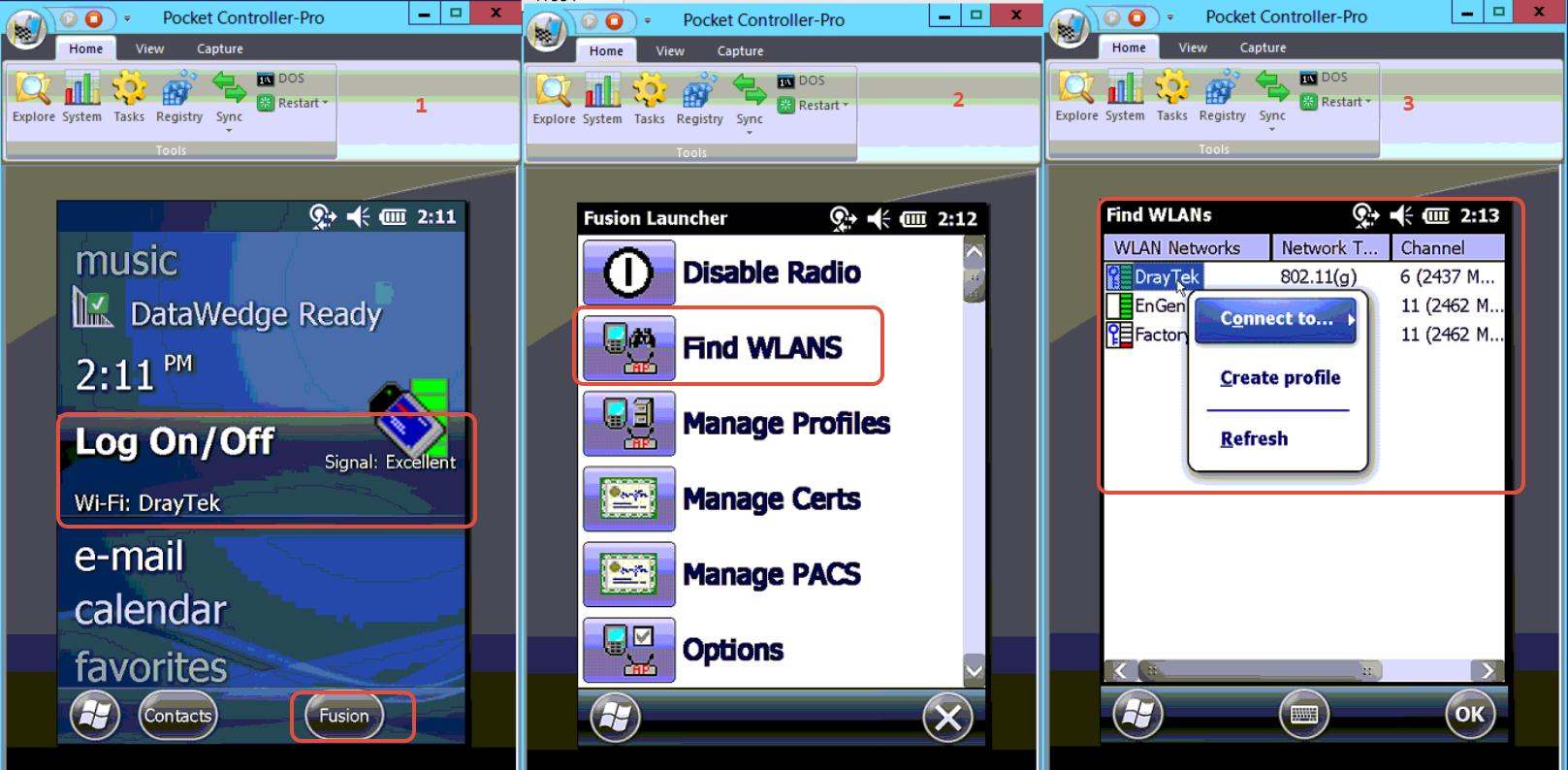
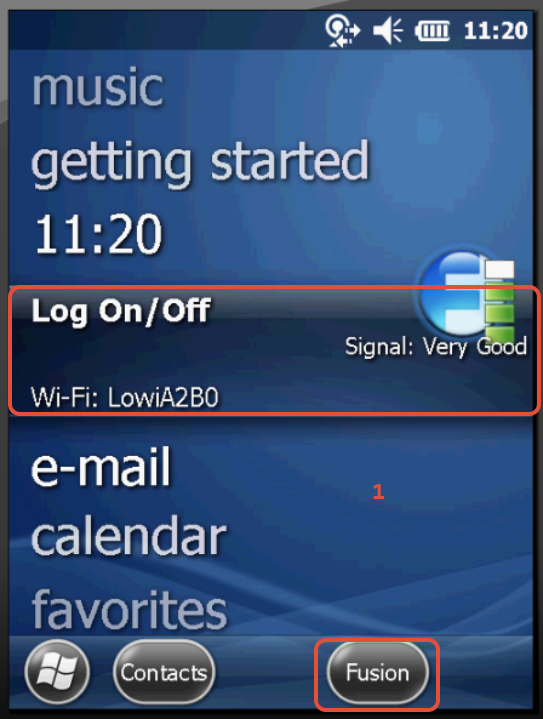
1. Select the WiFi option on the start screen and hit Fusion button at the bottom.
2. Find WLans and select.
3. Select the WiFi network need to connect and click on Connect To.
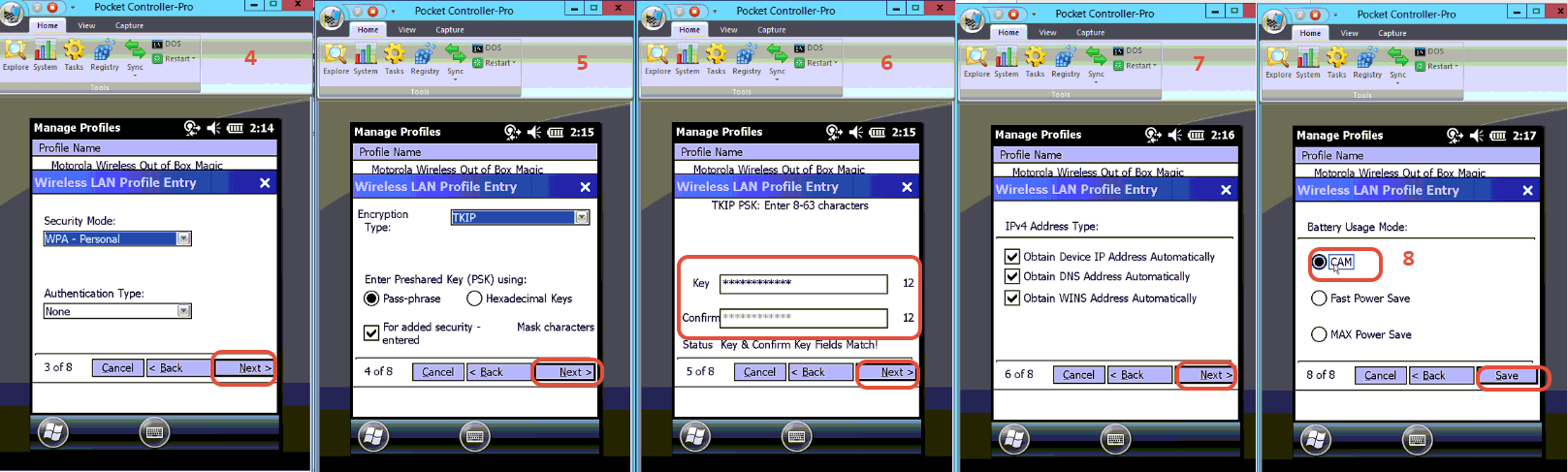
Set 4 to 8
Go though the all the steps with the below settings.
In step 5, set your WiFi password (12 characters)
Ok to any other step and save the changes.
If everything went fine, the connection should look like the very first screenshot (Signal: Excelent / icon in green)
To check internet connection from the scanner
Scanners need to connect to the internet in order to connect to the EOD server. while allowing the SDA application to create and renew SDA licenses.
How to check internet is working
Go to internet explorer in the scanner and type www.google.com and enter.
If the Google page loads on the scanner, then the scanner has the connection to the internet.
How to setup the internet connection
If Internet Explorer doesn’t work, try following the steps to restore the internet connection.
1. Go to Settings > Connections
(The safest is to get another scanner already working and replicate the next two settings.)
2. Then to Connections > Advanced
3. Select Networks and select My Work Network > OK
Note : The below 4th screens show the two different versions of scanner OS setting location for your reference.
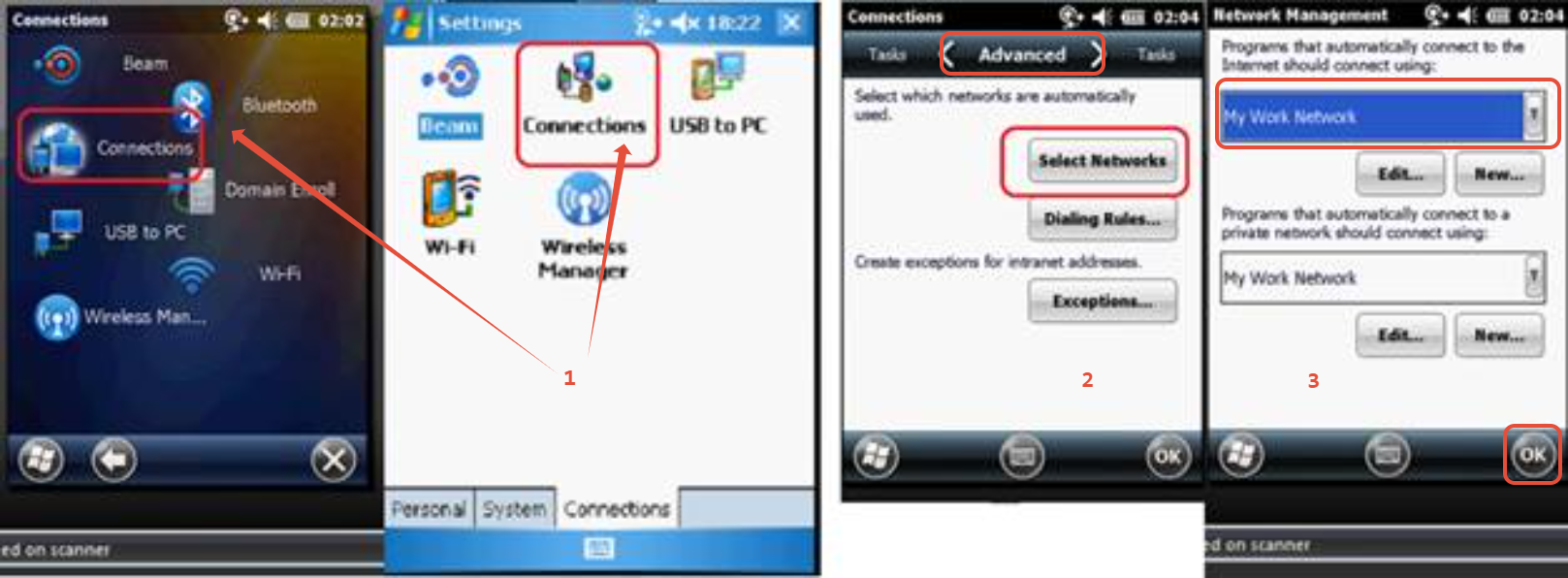
4. Then to Wifi in the same place (Go to Settings > Connections )
5. select “The Internet” and press OK
Note : The below 4th screens show the two different versions of scanner OS setting location for your reference.
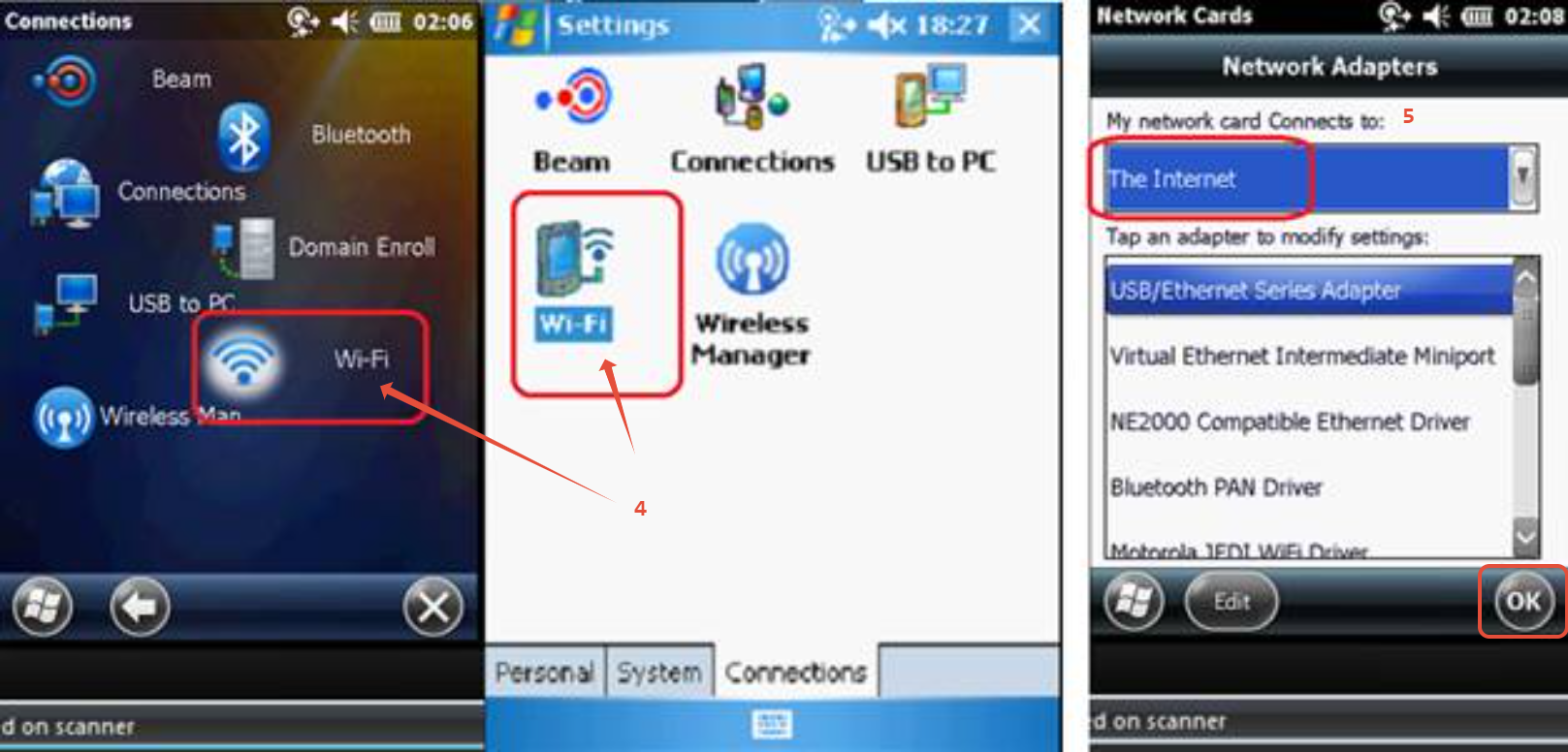
Note : The safest is to replicate settings from a working scanner.
How To check scanner IP
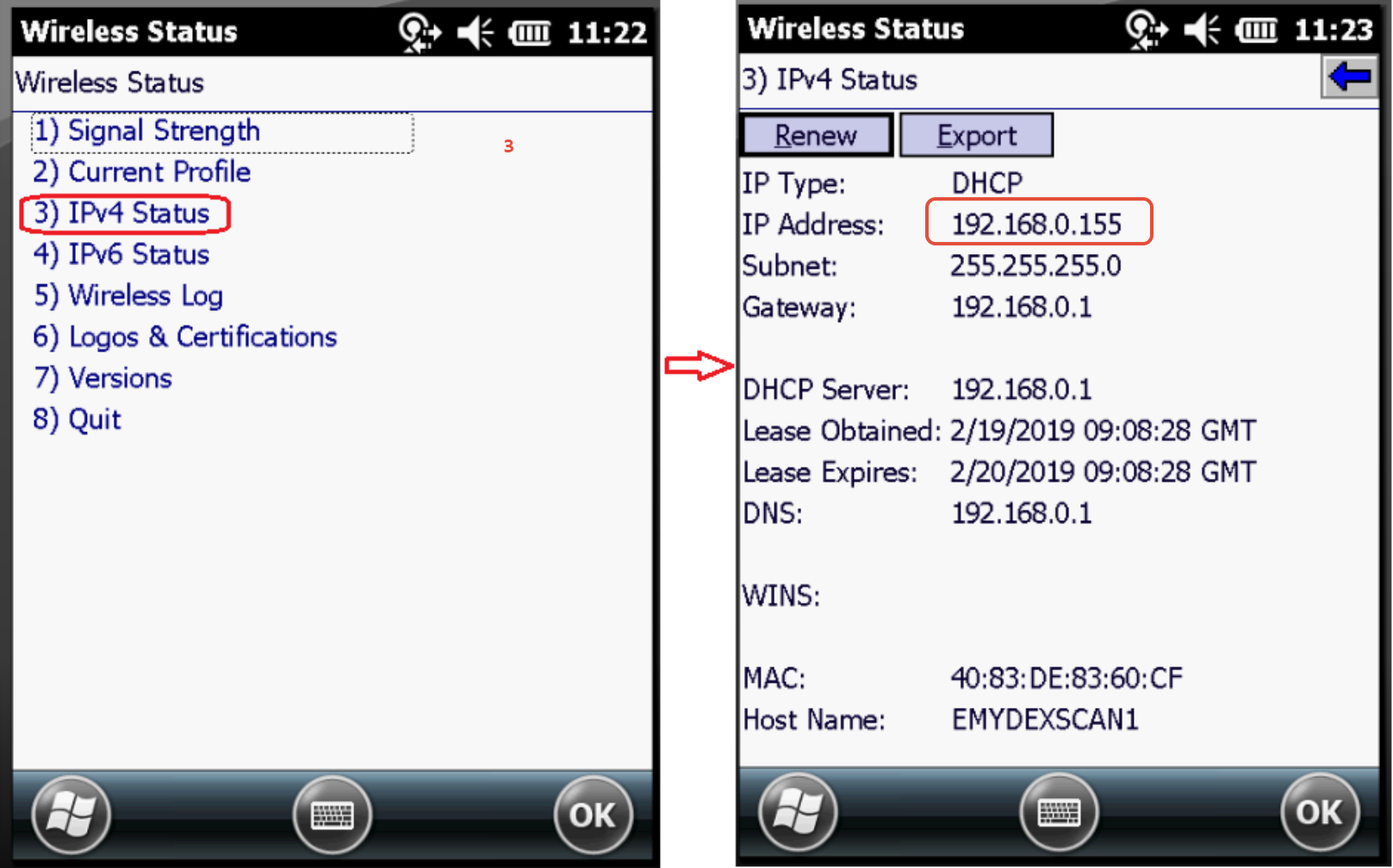
A scanner IP address is used to connect to the scanner remotely through the pocket controller, and the Emydex support team needs this IP address to connect to the scanner for remote support.
If the user needs to check the scanner IP address, please follow the below steps.
1. Go to the main menu > find the connection option > press ‘Fusion’ button.
2. then go to Wireless Status.
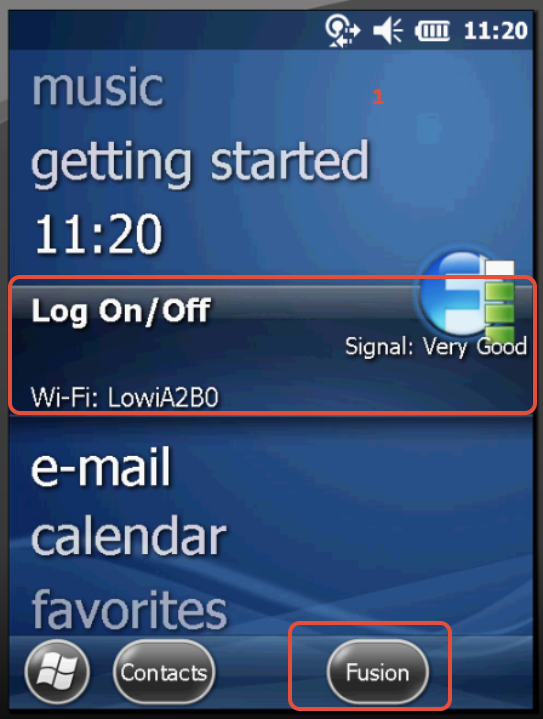
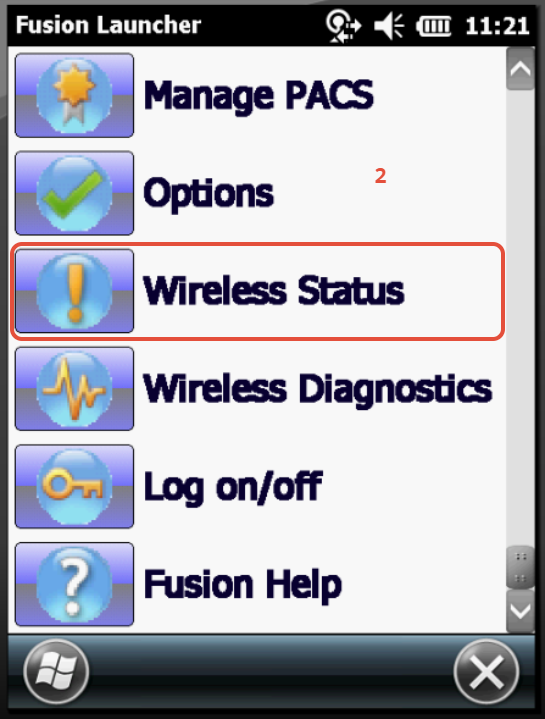
3. Select the IPv4 status to view the IP address.
How to Ping from the scanner
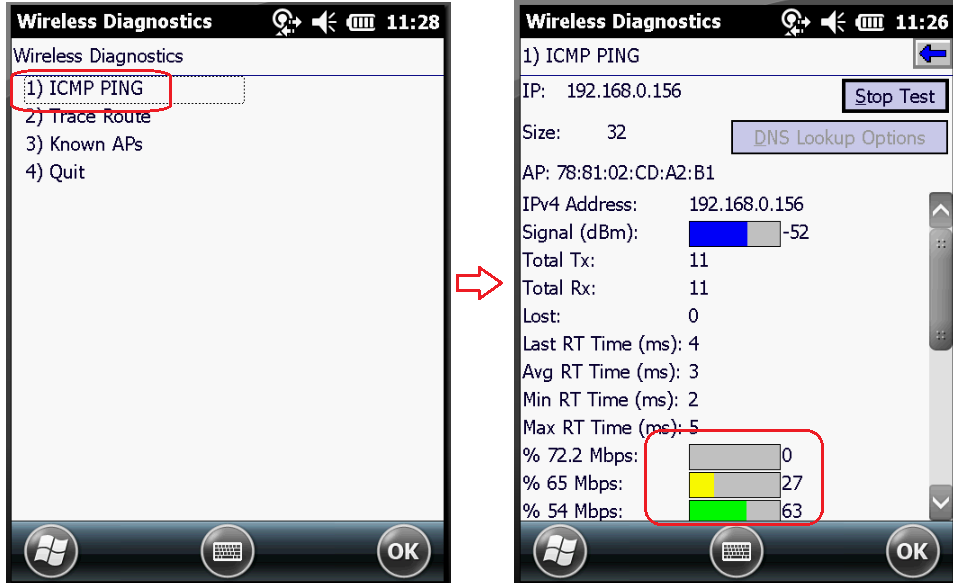
The user can use this option to test the connection between the scanner and the Emydex database.
1. Go to the main menu > find the connection option > press ‘Fusion’ button.
2. Then go to Wireless Diagnostics.
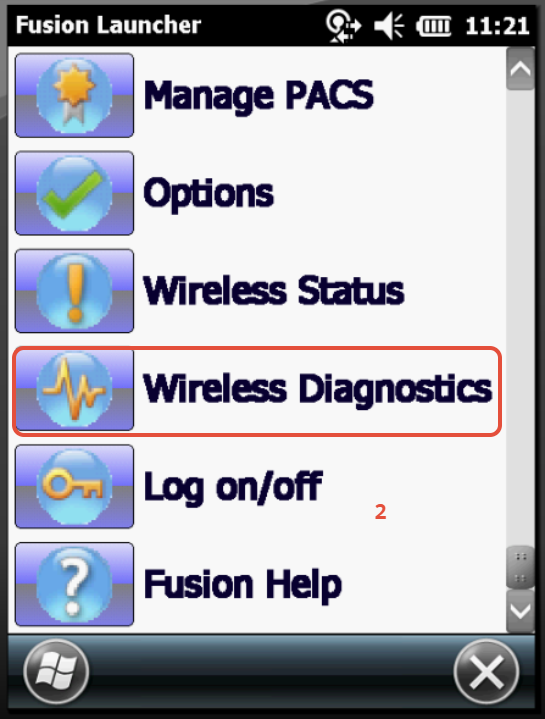
3. Select the ICMP PING and enter the IP address to start the ping.